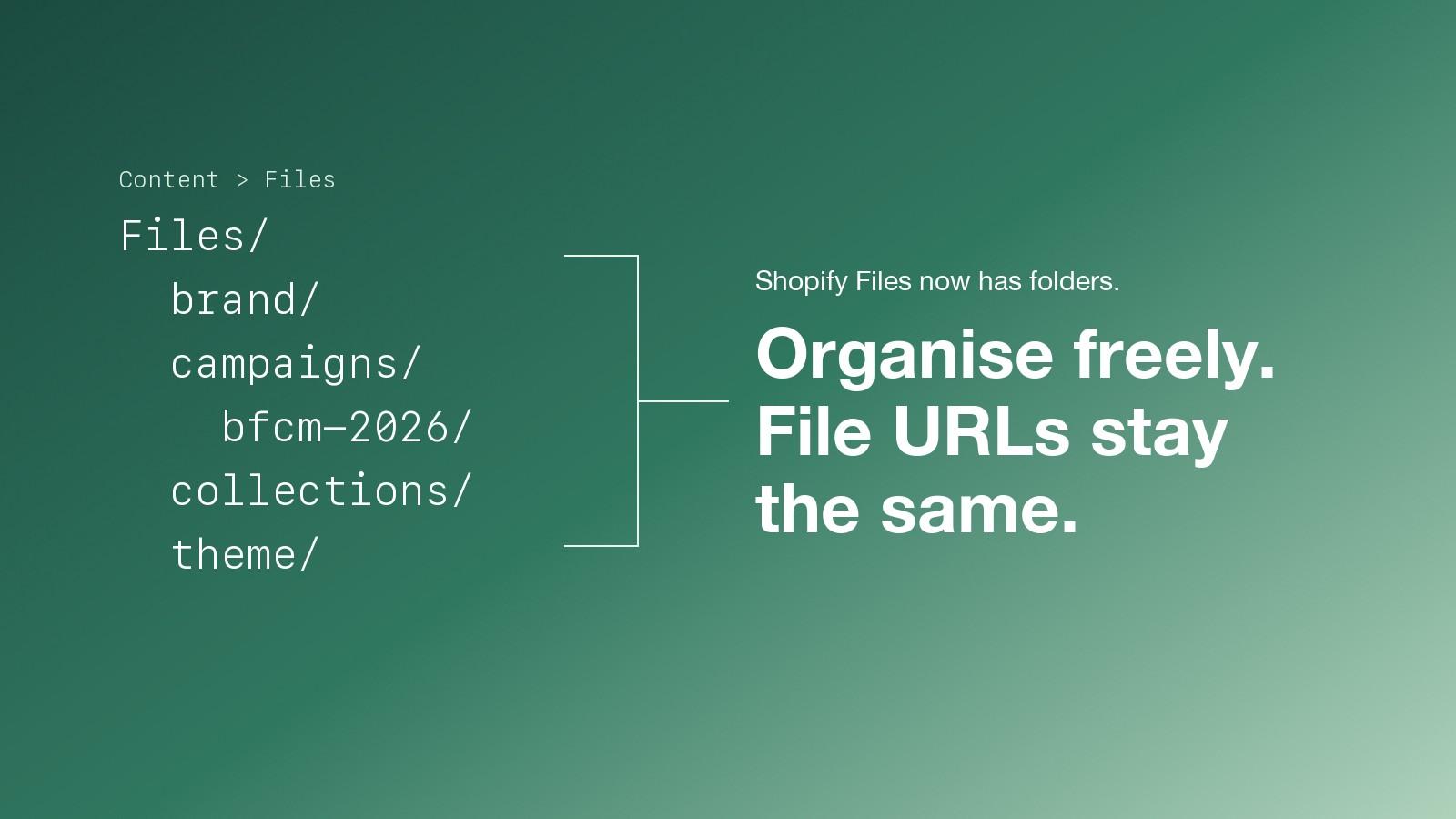
For years the Files page in the Shopify admin was one long flat list. Every logo, banner, size guide, campaign creative and product shot went into the same place, and finding last month's BFCM banner meant scrolling or guessing the filename.
That has changed. Content > Files now has folders. You can create them, nest them, and move files into them.
That sounds like a small admin feature, and for store owners it mostly is. For developers it raises real questions:
- Does moving a file into a folder change its URL?
- Will
file_urlin a theme still work? - Can an app create folders and put files in them?
- Are there folder names you are not allowed to use?
I tested all of this on a development store. Here is what I found.
Status, November 2026: folders are live in the Shopify admin. The matching Admin GraphQL API fields are only in the unstable API version so far, so treat the API part of this post as a preview.
Creating a folder
In the admin, go to Content > Files and click New folder. Give it a name and click Create. The folder appears at the top of the file list and in the sidebar tree on the left.
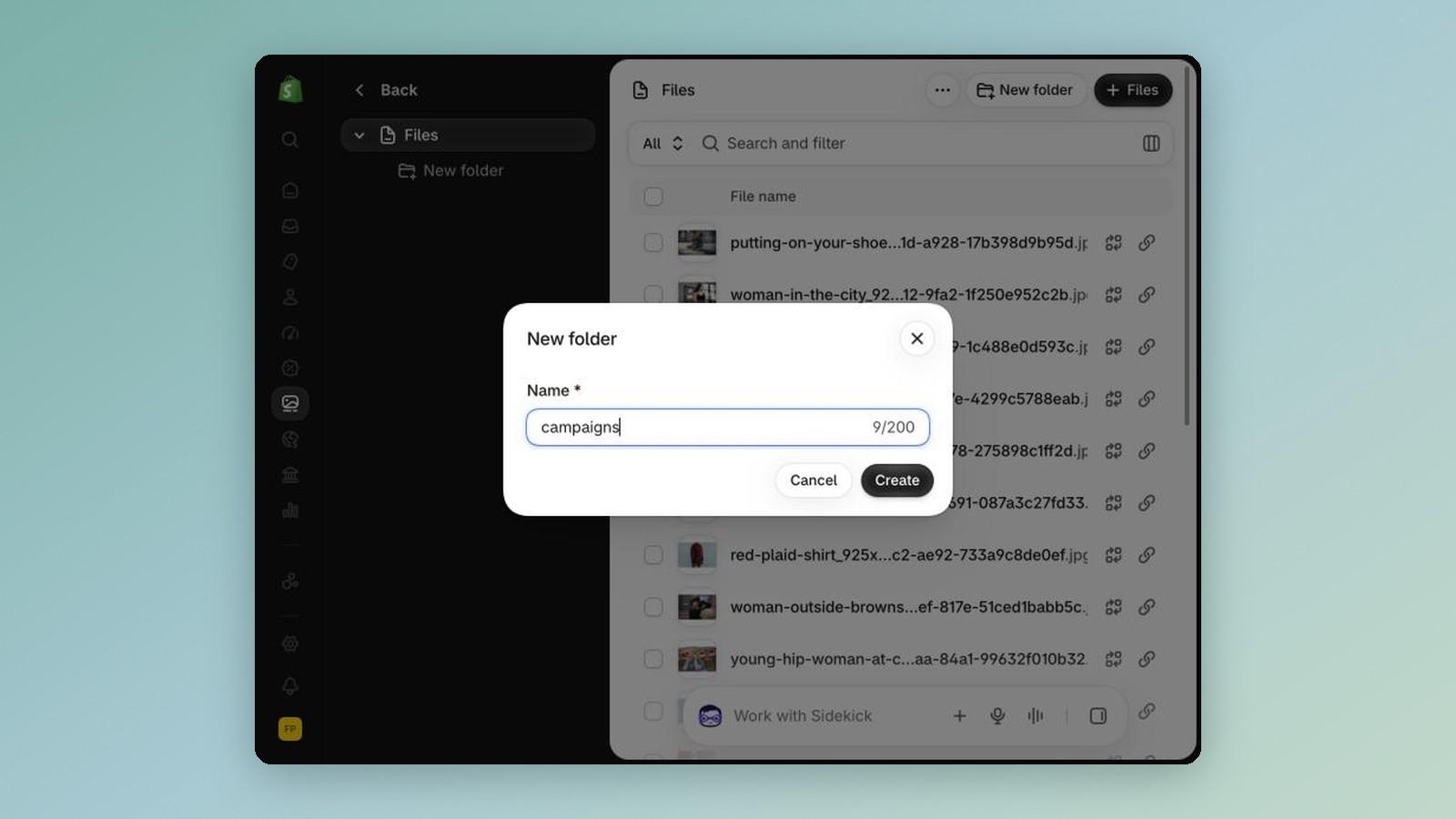
Folders can be nested. Open a folder and click New folder again to create a subfolder inside it. I created campaigns/bfcm-2026 this way.
Reserved folder names
This was the most useful thing I found. Some names are blocked. When I tried to create a folder called products, Shopify refused it:
The specified directory name is reserved and cannot be used.
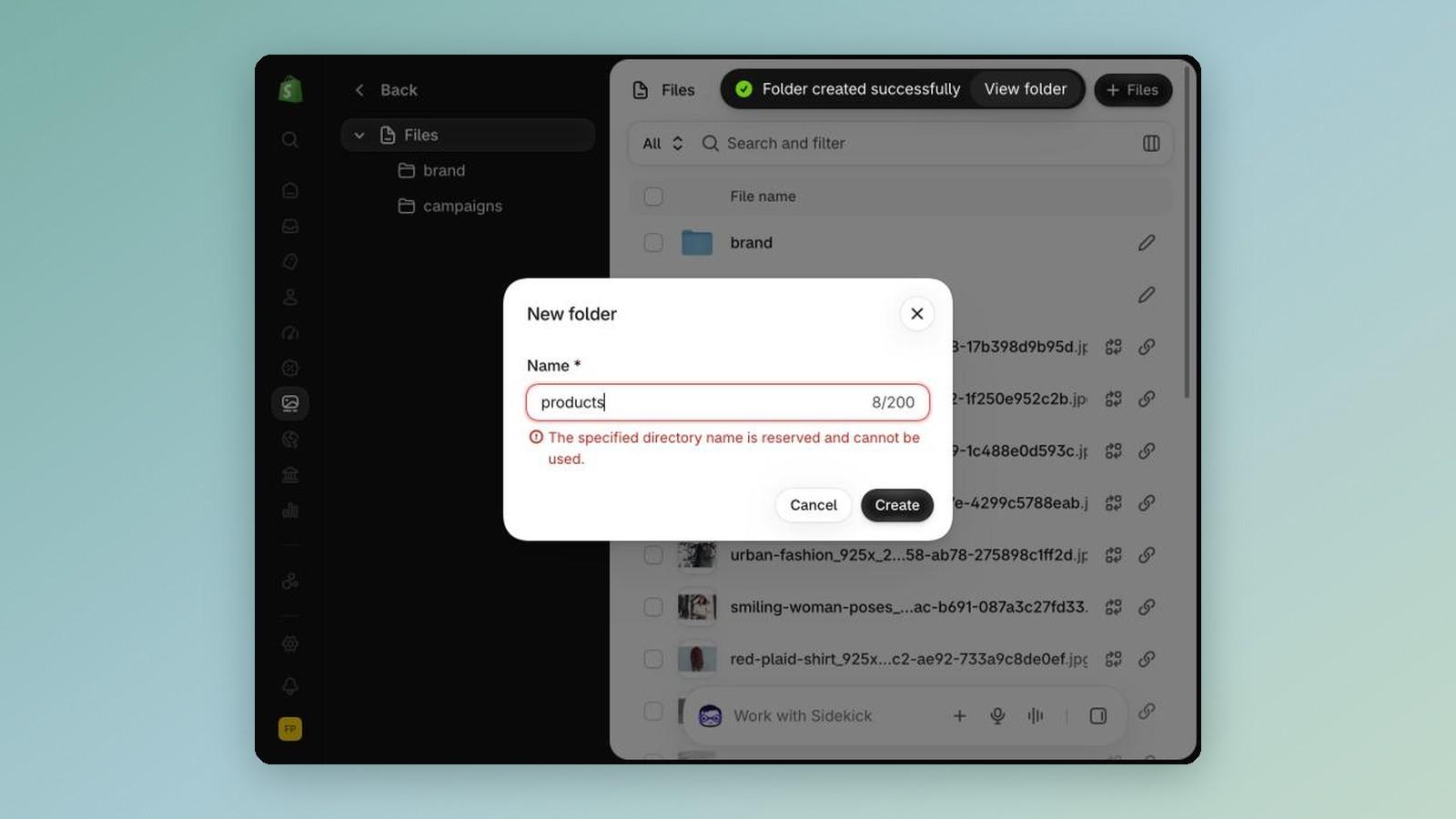
Here is what I tested at the top level of Files:
- Rejected as reserved: products, documents, public
- Allowed: collections, images, videos, files
The public one makes sense once you look at the API (more on that below): every file already lives inside a default directory called public, so the Files page you see is really the inside of that directory.
Shopify does not publish a list of reserved names that I could find, so there may be more. If you plan a folder structure for a client, avoid generic system-sounding names, and test the names before you put them in a handover document.
A folder structure I would use
Folders are only useful if everyone on the team uses the same ones. This is a simple structure that works for most stores:
Files/
  brand/          logos, favicons, brand patterns
  campaigns/
    bfcm-2026/    banners and creatives for one campaign
  collections/    collection banners and images
  theme/          images used by sections and blocks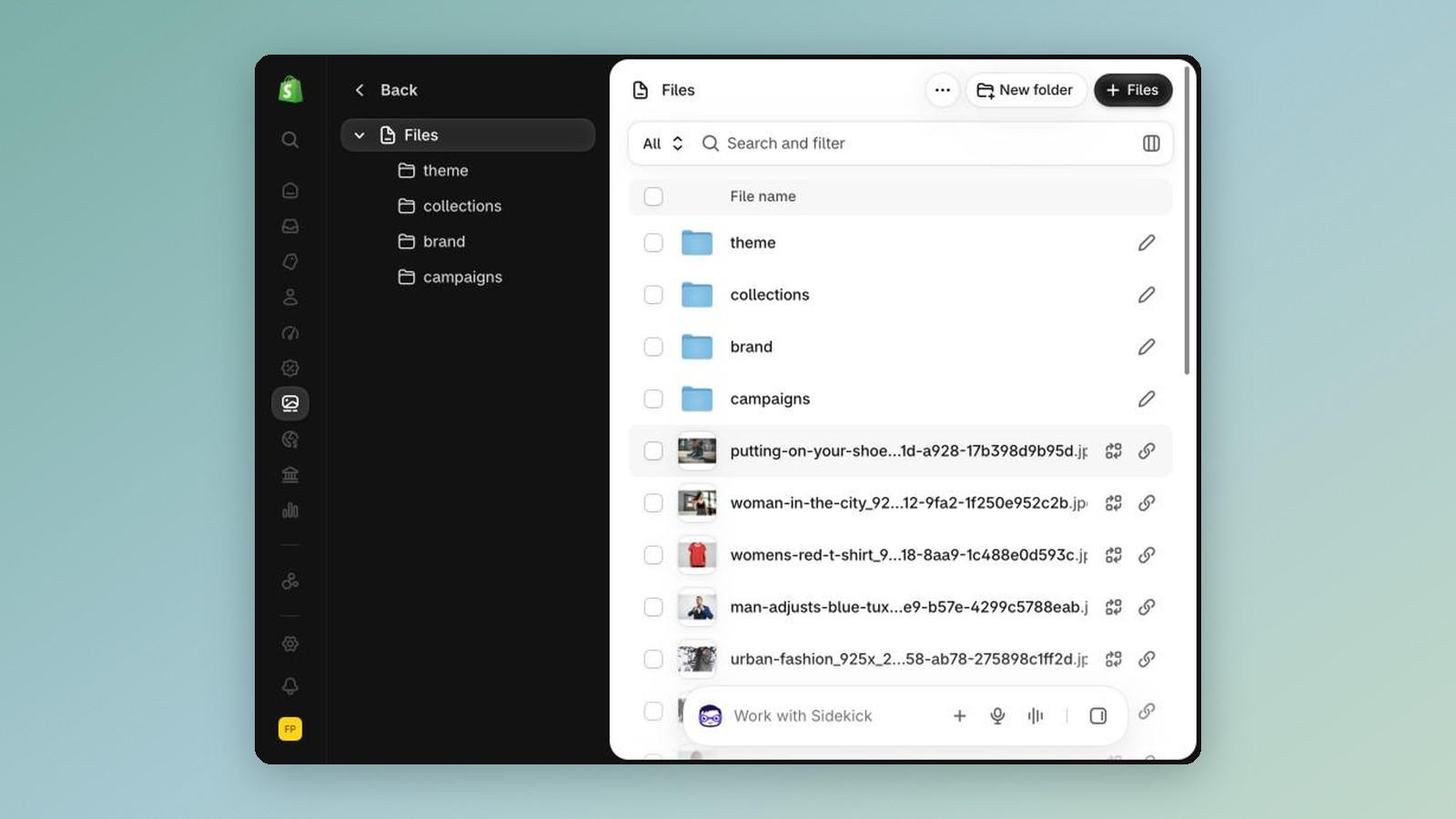
A few rules that keep it tidy:
- Use lowercase names with hyphens, like bfcm-2026. They are easy to type, easy to search, and match how developers name things in code.
- One folder per campaign, with the year in the name. Next year you can see exactly what was used last time.
- Keep theme assets separate from marketing assets. Files used in sections and blocks should not get deleted because someone cleaned up old campaign banners.
- Do not try to organise product media here. Product images belong to products, and products is a reserved name anyway.
Moving files into a folder
Select one or more files, click Move to, and pick a destination. The picker lists your folders, lets you search them, and has a New folder option at the bottom.
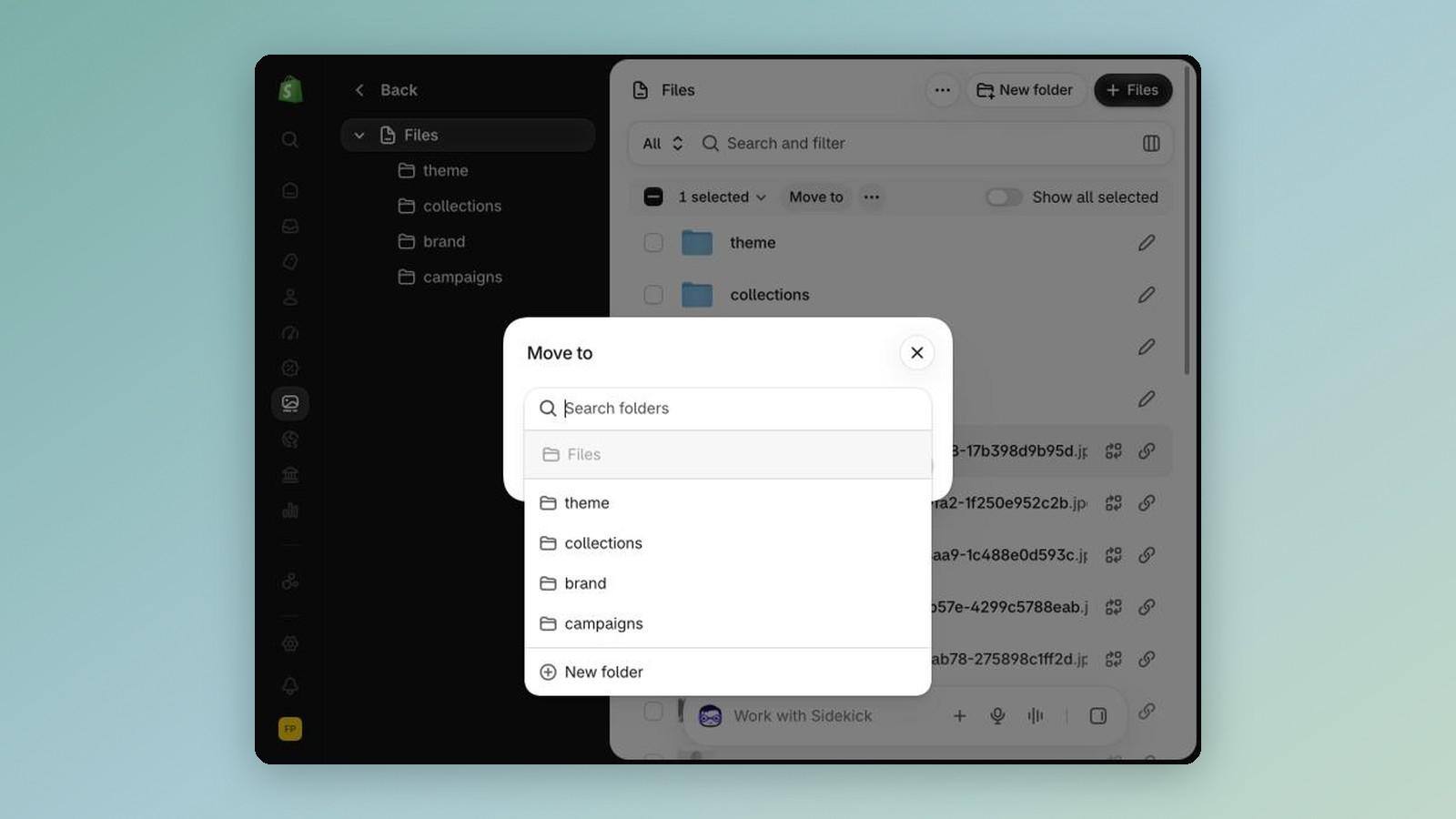
To move a file back out, choose Files as the destination.
Does moving a file change its URL?
This is the question that matters for developers, so I tested it.
Before moving anything, I requested a product image's CDN URL. It is the usual flat format:
https://your-store.myshopify.com/cdn/shop/files/putting-on-your-shoes_925x_81f6d3fd.jpgThat returned 200. Then I moved the file into the campaigns folder and requested the same URL again. Still 200, same file. I also tried the URL with the folder name in the path:
https://your-store.myshopify.com/cdn/shop/files/campaigns/putting-on-your-shoes_925x_81f6d3fd.jpgThat returned 404. The folder is not part of the public URL at all.
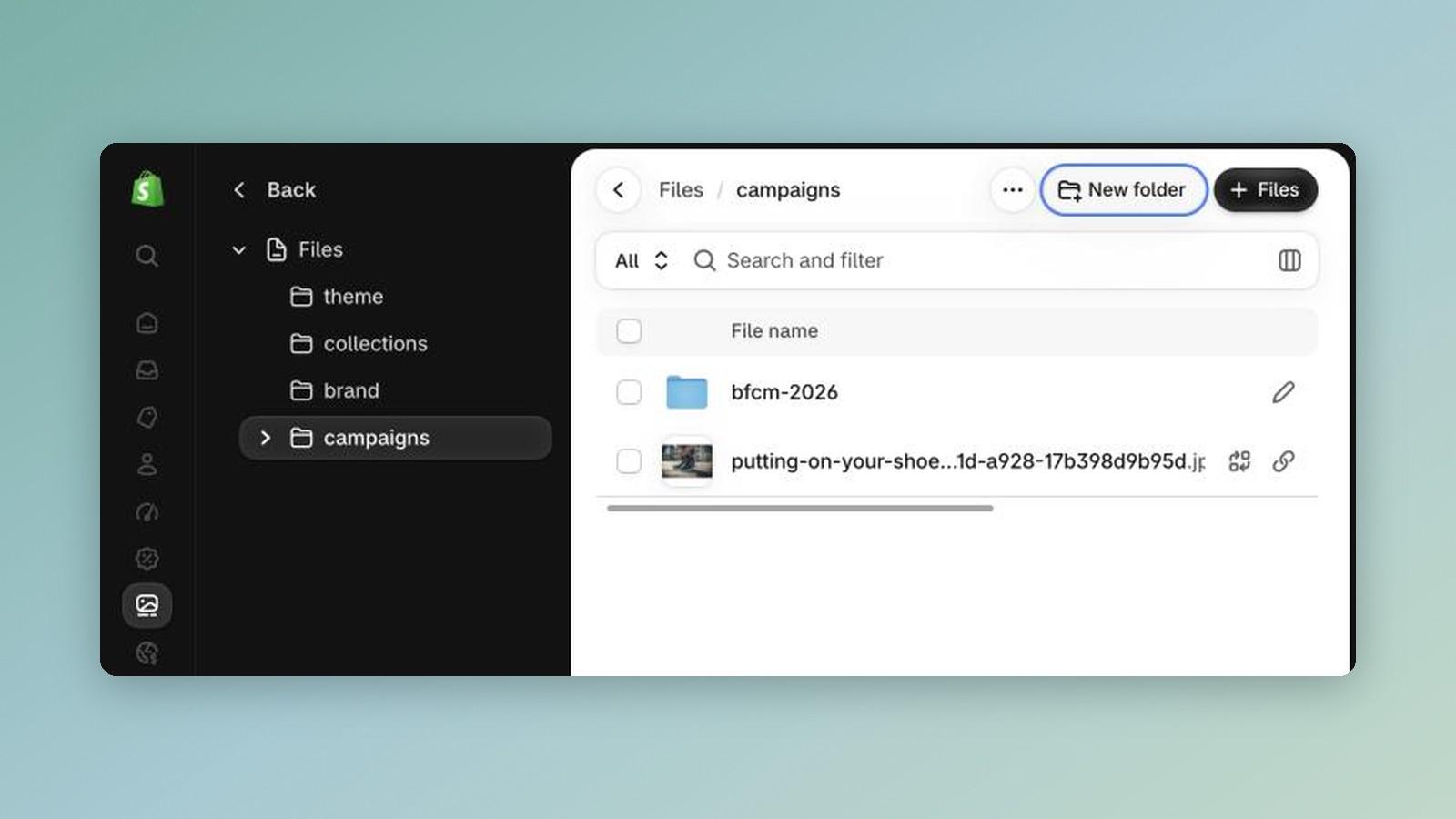
So moving a file into a folder:
- does not change its CDN URL,
- does not break links you already pasted into pages, emails or ads, because the address they point to still serves the file.
Folders are an admin organisation layer. They do not change how files are served.
How themes reference files
In Liquid, files from the Files page are referenced by filename with the file_url filter:
{{ 'size-guide.pdf' | file_url }}The filter only takes a filename. There is no folder argument, and given the test above there does not need to be one: the URL is the same wherever the file sits in the admin. Existing themes keep working after a client reorganises their files.
One consequence: because the folder is not part of the URL, filenames still need to be unique across the whole store, not just inside a folder. Shopify's fileCreate mutation already handles name clashes with duplicateResolutionMode, which defaults to appending a unique ID. Do not rely on folders to keep two files called banner.jpg apart. Give files descriptive names, like bfcm-2026-hero-desktop.jpg.
Most modern themes reference files through image_picker and url settings anyway, which store a reference to the file rather than a path, so those are not affected either.
Folders in the Admin GraphQL API
In the current stable API version (2026-10), FileCreateInput has no folder fields. In the unstable version, Shopify has added them:
- parentDirectoryPath: the full path to create or move the file into, for example public/assets/images. Files can only live under the default public directory.
- parentDirectoryId: the ID of the parent directory, as an alternative to the path.
- DIRECTORY: a new value in the
FileContentTypeenum, described as "a directory for organizing files".
The same two fields are on FileUpdateInput, so fileUpdate can move an existing file between folders. To move a file back to the top level, the docs say to use the path public.
Here is what uploading a file straight into a folder looks like with the unstable API:
mutation CreateFileInFolder {
  fileCreate(
    files: [
      {
        originalSource: "https://example.com/bfcm-2026-hero.jpg"
        filename: "bfcm-2026-hero.jpg"
        contentType: IMAGE
        parentDirectoryPath: "public/campaigns/bfcm-2026"
      }
    ]
  ) {
    files {
      id
      fileStatus
    }
    userErrors {
      field
      message
    }
  }
}
Creating a folder uses the same mutation. The docs say that for directories, parentDirectoryPath is the parent folder and filename is the new folder's name, with contentType: DIRECTORY. originalSource is still marked as required on the input, though, so the exact shape for creating a folder is not clear yet.
I have not run these mutations against the unstable API myself. Check the unstable reference before you build on it, and do not ship app code against unstable to a live store.
When this reaches a stable version it will be genuinely useful for apps: an image app can keep its generated files in its own folder, and an agency can script a client's folder structure during store setup instead of clicking through it.
Be careful when deleting folders
When I deleted three empty test folders, the confirmation said:
Selected files will be permanently deleted and removed from anywhere they're referenced in your store.
I only deleted empty folders, so I did not test what happens to files inside a folder you delete. Given that wording, assume deleting a folder deletes what is in it. Move files out first, and never let someone "clean up" a theme folder without checking what uses those files.
Checklist for teams
- Agree on a folder structure before people start moving files, and write it down.
- Use lowercase, hyphenated folder names. Avoid products, documents and public.
- Give files descriptive, unique names. Folders do not make filenames unique.
- Moving files is safe for links: the CDN URL and
file_urloutput do not change. - Move files out before deleting a folder.
- Watch for
parentDirectoryPathlanding in a stable Admin API version if you build apps.
Let's Work Together
To do work with me, contact me here: LinkedIn