Shopify's New {% partial %} Tag
One of the most important skills a Shopify developer can have is re-rendering part of a page without reloading the whole thing. Cart drawers, collection filters, sorting, predictive search, pagination and variant pickers all depend on it.
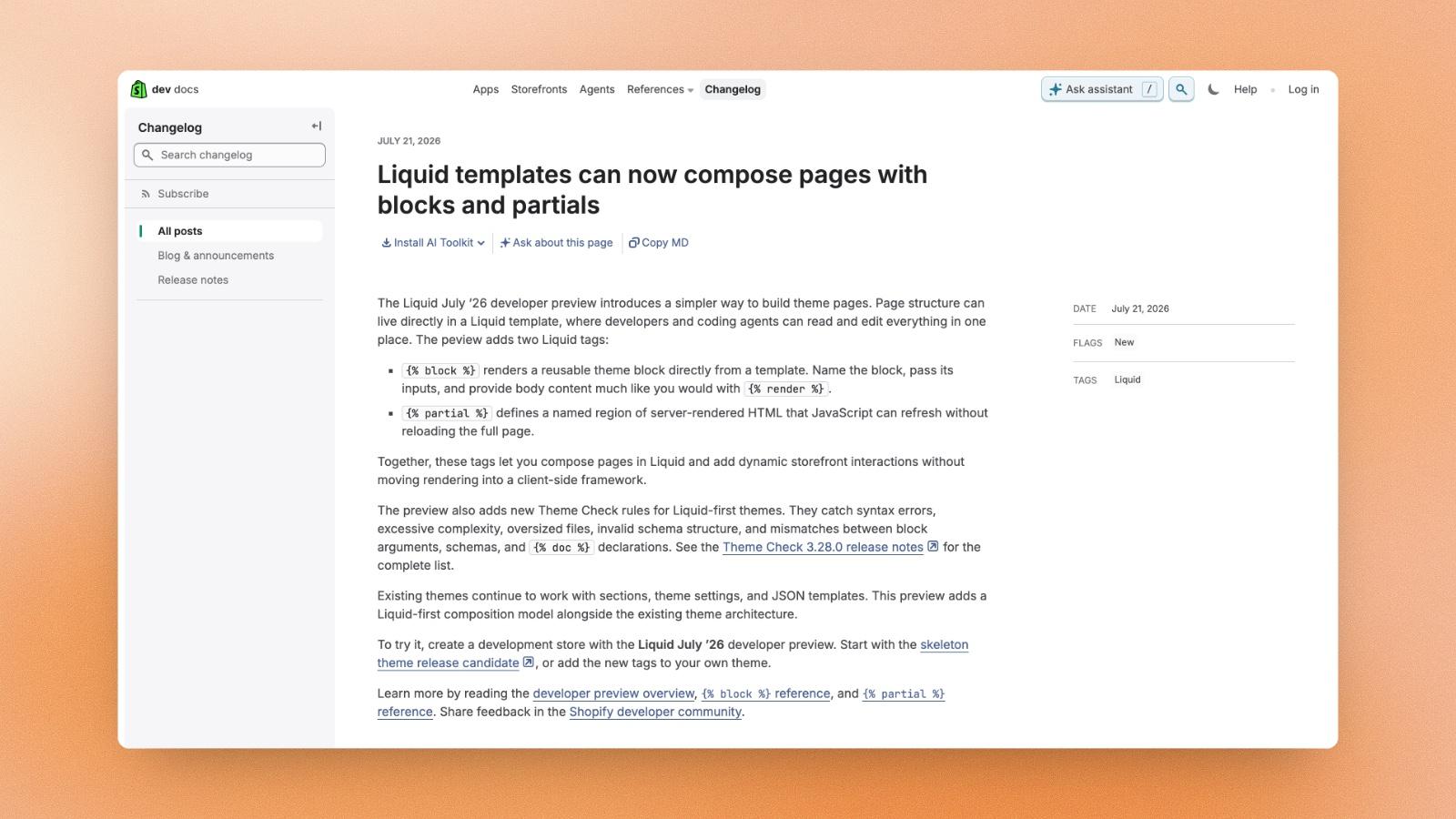
Until now, the standard way to do that was the Section Rendering API. In July 2026 Shopify introduced a simpler model: the {% partial %} Liquid tag, paired with a small JavaScript helper called @shopify/partial-rendering.
This guide explains what changes, how it works, and how I would use it in a real theme.
Status, November 2026: {% partial %} is a developer preview, part of the "Liquid July '26" changes announced on 21 July 2026. It only works on development stores with that preview enabled, and Shopify says the tag and its JavaScript helpers can change before general availability. Learn it now; do not ship it to a live store yet.
Why re-rendering matters
A Shopify theme renders HTML on the server with Liquid. That is good for speed and SEO, but it creates a problem the moment a shopper interacts with the page:
- They change the sort order on a collection page.
- They tick a filter.
- They change a quantity in the cart drawer.
- They pick a different variant.
You do not want a full page reload for any of these, and you do not want to rebuild the product card or cart line markup in JavaScript either. That would mean keeping two copies of the same template, one in Liquid and one in JS, and they always drift apart.
The right answer has always been: ask the server to render the HTML again, and swap only the part that changed. The question is how much work that takes.
How we did it until now: the Section Rendering API
With the Section Rendering API, you request a page with a section_id (or sections) parameter, and Shopify returns just that section's HTML. Then you do the rest yourself:
// Sorting a collection with the Section Rendering API
const url = new URL(window.location.href);
url.searchParams.set('sort_by', 'price-ascending');
url.searchParams.set('section_id', sectionId); // e.g. from data-section-id="{{ section.id }}"

const res = await fetch(url);
const html = await res.text();
const doc = new DOMParser().parseFromString(html, 'text/html');

document.querySelector('#product-grid')
  .replaceWith(doc.querySelector('#product-grid'));
document.querySelector('#product-count')
  .replaceWith(doc.querySelector('#product-count'));

// Then, by hand:
// - re-attach event listeners to the new nodes
// - restore keyboard focus if it was inside the grid
// - keep the scroll position
// - make sure a slow older response does not overwrite a newer one
// - update the URL with history.pushState
It works, and it is how good themes have built cart drawers and filters for years. But it has real costs:
- You must know the section ID. Section IDs in JSON templates look like template--1234__main, so themes pass them around through data attributes.
- You get the whole section back, even when only a small part changed.
- The swap is all yours. Parsing HTML, finding the right nodes, replacing them, and keeping several regions in sync is custom code in every theme.
- Swapping nodes destroys state. Focus, text selection, typed form values and scroll position are lost unless you save and restore them.
- More JavaScript to ship and debug. Every theme reinvents the same helpers, with slightly different bugs.
What {% partial %} is
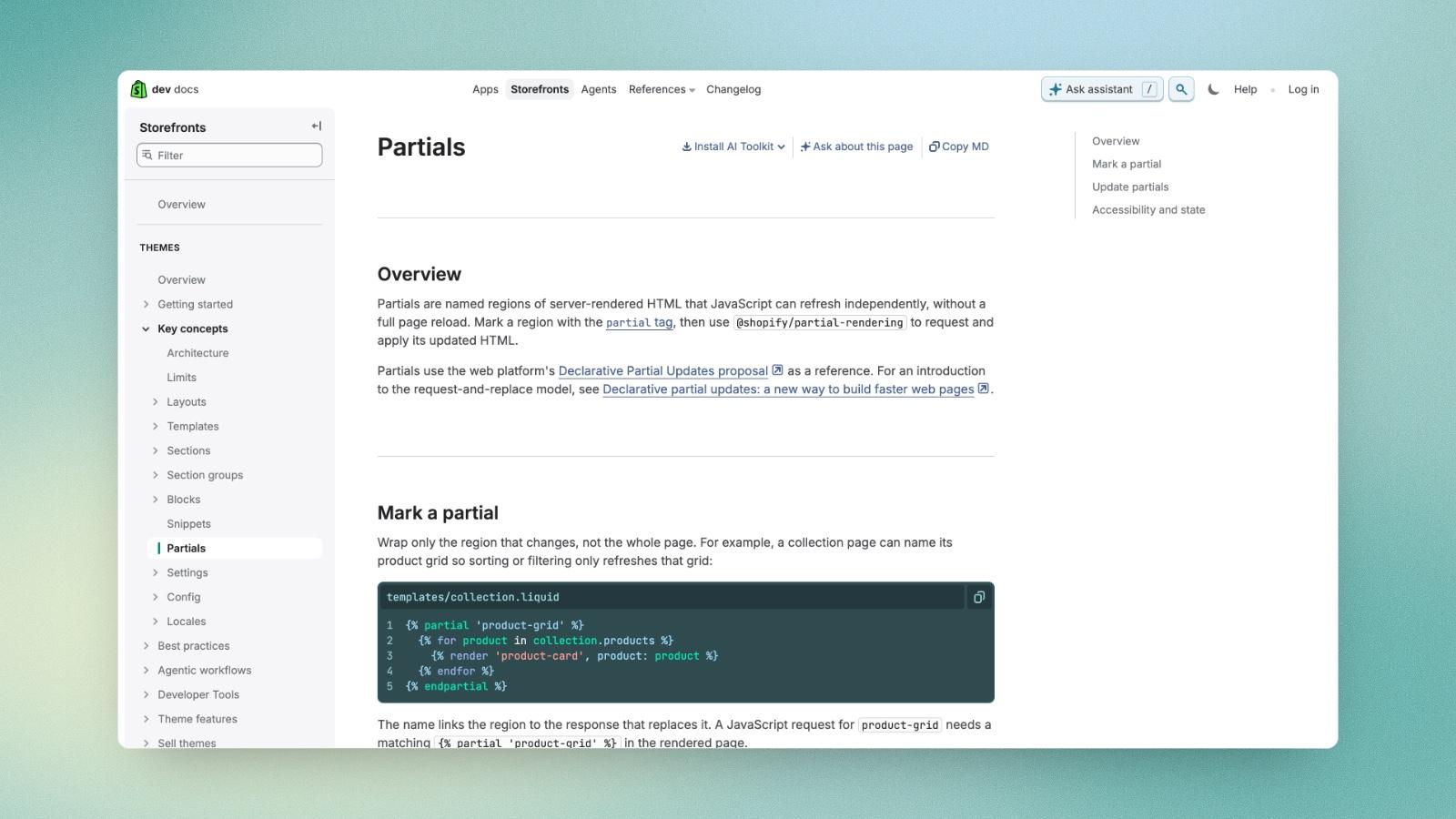
A partial is a named region of server-rendered HTML that JavaScript can refresh on its own. You wrap the part of a template that changes and give it a name:
{% partial 'product-grid' %}
  {% for product in collection.products %}
    {% render 'product-card', product: product %}
  {% endfor %}
{% endpartial %}
Three things to understand:
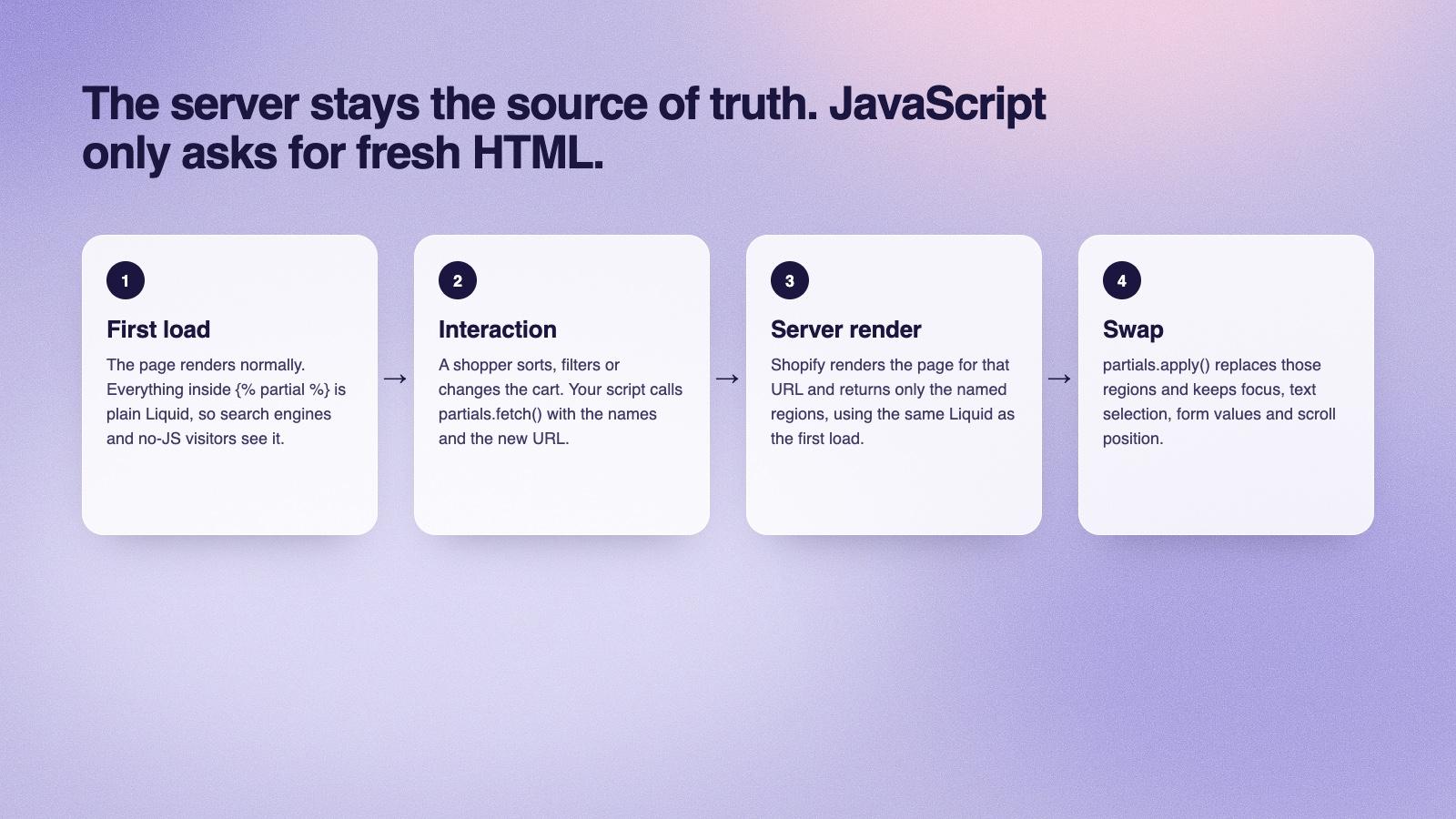
- On first load, nothing is different. The content inside a partial is regular Liquid and renders with the rest of the page. Search engines and visitors without JavaScript see the full page.
- The name is the contract. When JavaScript asks for product-grid, the page rendered for that request must contain a matching {% partial 'product-grid' %}. The name links the region on the page to the region in the response.
- Wrap only what changes. If sorting only changes the grid and the product count, make those two partials, not the whole section.
The JavaScript side: @shopify/partial-rendering
The helper exposes a single object, partials, with five methods:
- partials.fetch(...names, { url }): requests fresh HTML for one or more named partials, rendered for the URL you pass. It returns an update object.
- partials.apply(update): swaps the matching regions into the page.
- partials.refresh(...names): fetch and apply in one call, for the current page URL. Called with no arguments, it refreshes every partial on the page; called with an element, it refreshes only the partials inside that element.
- partials.get(name): returns the first matching partial already on the page, without fetching anything.
- partials.getAll(scope): returns every partial inside a scope. Each result pairs the partial's name with a DOM Range covering its content.
The most useful detail is what apply() preserves for you: keyboard focus, text selection, form values and scroll position. With the Section Rendering API, that was the code you had to write yourself.
A note on installing it: you cannot npm install this package today. A Shopify engineer confirmed on the developer forum that it is not published to npm; it is provided at runtime to storefronts enrolled in the developer preview. In Shopify's skeleton theme release candidate it is used as a plain ES module import with no build step:
import { partials } from '@shopify/partial-rendering';If your theme uses a bundler such as webpack, treat that import as external for now.
Before and after
Here is the same sorting interaction written both ways:
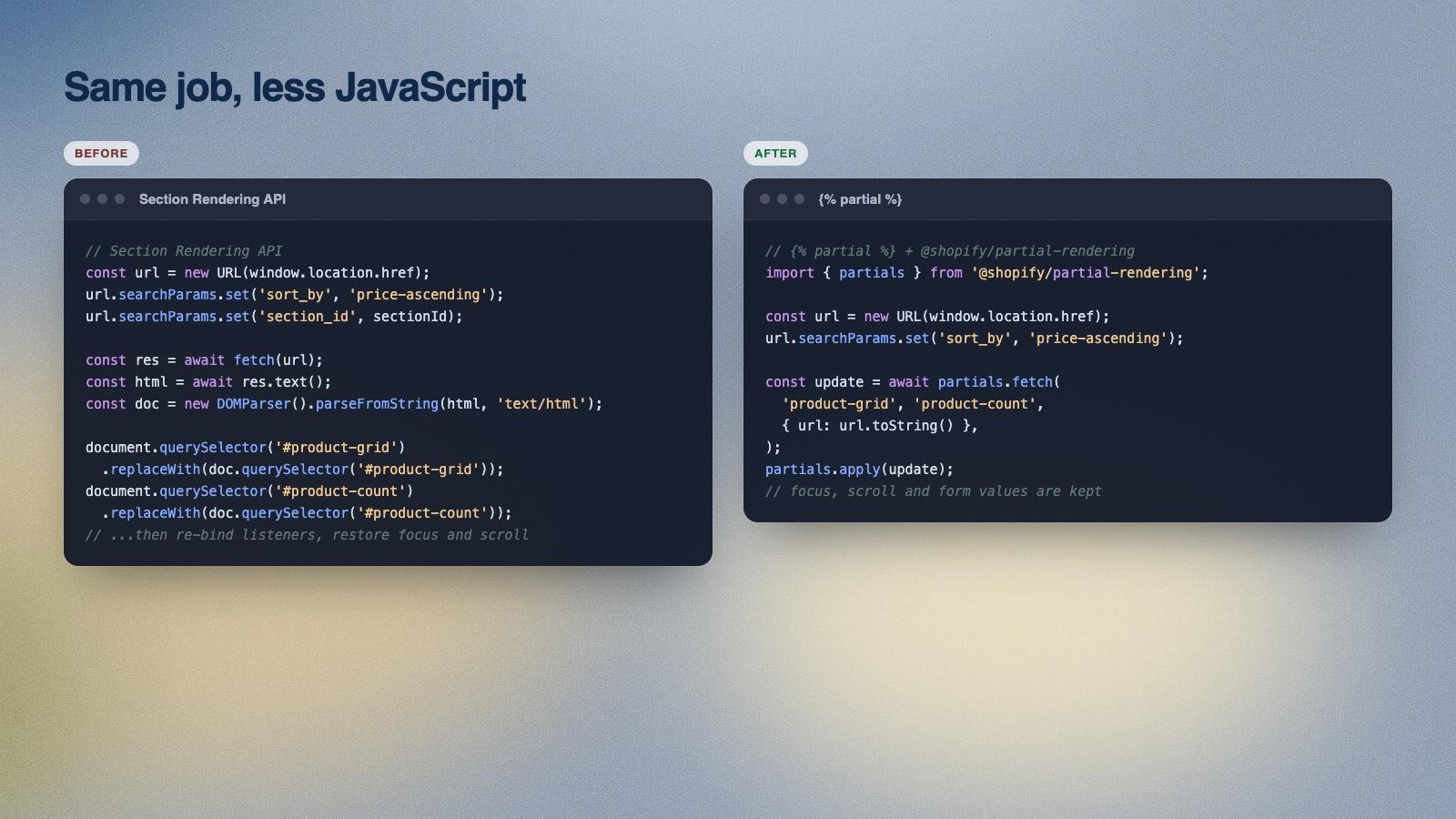
The partial version has no section ID, no HTML parsing, no manual node swapping and no focus or scroll handling. That is less code to write, but more importantly less code to get wrong.
Example 1: sorting a collection
Liquid (in the collection template or its main section):
<p id="count">
  {% partial 'product-count' %}
    {{ collection.products_count }} products
  {% endpartial %}
</p>

<div class="grid">
  {% partial 'product-grid' %}
    {% for product in collection.products %}
      {% render 'product-card', product: product %}
    {% endfor %}
  {% endpartial %}
</div>
JavaScript:
import { partials } from '@shopify/partial-rendering';

const select = document.querySelector('#sort-by');

select.addEventListener('change', async () => {
  // Start from the current URL so locale, market and filters are kept
  const url = new URL(window.location.href);
  url.searchParams.set('sort_by', select.value);

  const update = await partials.fetch('product-grid', 'product-count', {
    url: url.toString(),
  });
  partials.apply(update);

  // Keep the address bar in sync so the page can be shared and reloaded
  history.pushState({}, '', url);
});
Shopify's docs stress one point here: build the request URL from the current URL (or the routes object), never from a hardcoded path. That way the request keeps the shopper's language, market and existing filters.
Example 2: filters that update several regions at once
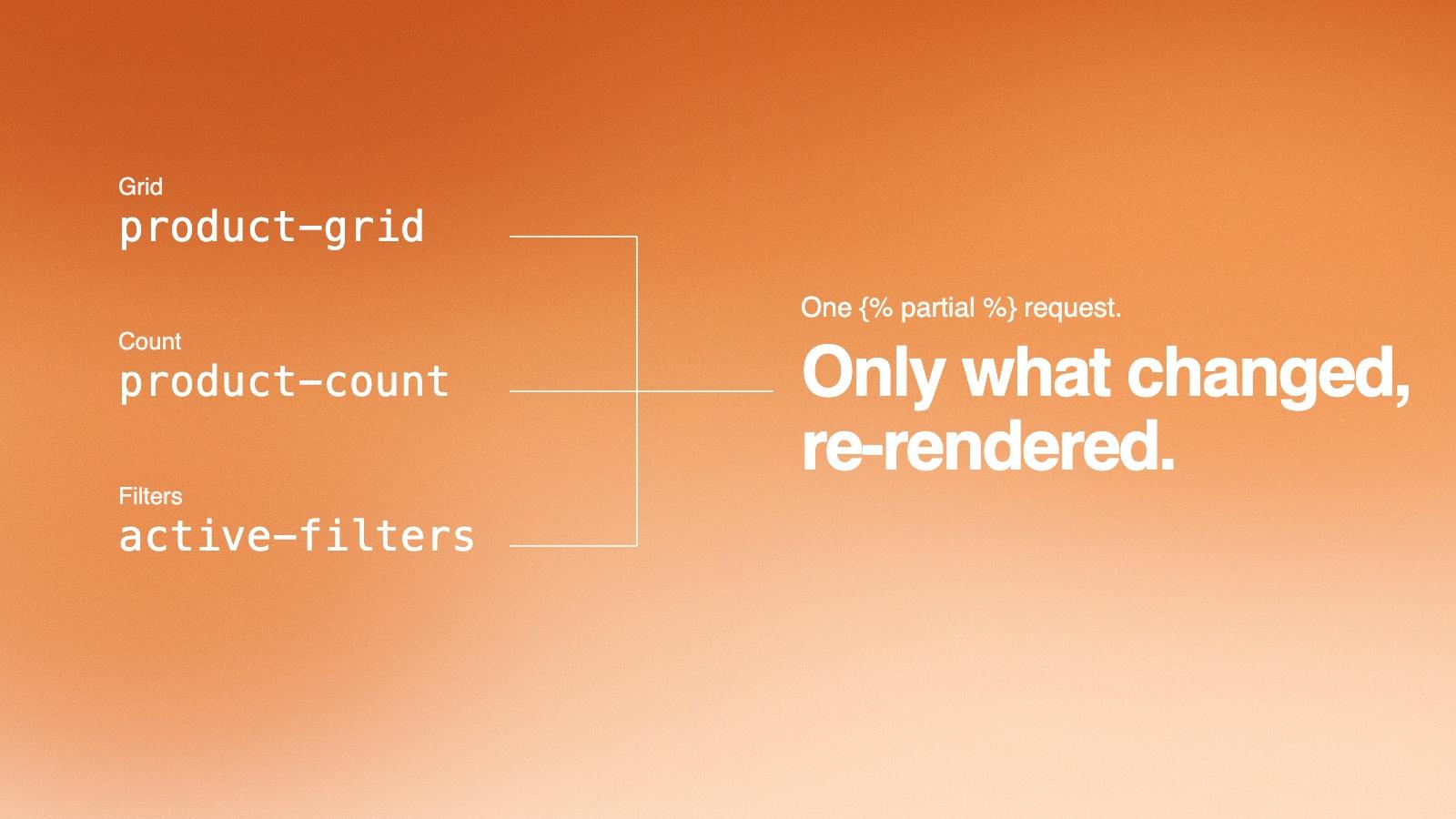
When a shopper ticks a filter, more than one part of the page changes: the grid, the count, and the list of active filter pills. Fetch them together, so a single response keeps them consistent:
async function applyFilters(url) {
  const update = await partials.fetch(
    'product-grid',
    'product-count',
    'active-filters',
    { url: url.toString() },
  );
  partials.apply(update);
}
Fetching them separately risks a mismatch, for example a count that says 12 products above a grid that shows 9.
Example 3: a cart drawer
For the cart, change the cart through the Cart API first, then refresh the regions that show it. Because the cart lives on the server, a refresh for the current page returns the updated cart markup:
async function changeQuantity(line, quantity) {
  await fetch(window.Shopify.routes.root + 'cart/change.js', {
    method: 'POST',
    headers: { 'Content-Type': 'application/json' },
    body: JSON.stringify({ line, quantity }),
  });

  // Re-render the drawer and the header count from the server's Liquid
  await partials.refresh('cart-drawer', 'cart-count');
}
This assumes both partials are rendered on the current page, for example a drawer and a counter output in the header. Shopify's docs flag one catch: apply() keeps form values as they are, so if the server changed a quantity (because stock ran out, say), update that input yourself after the refresh.
Example 4: back and forward buttons
When the shopper presses Back after filtering, the URL changes but the page does not. Refresh the partials for the restored URL:
window.addEventListener('popstate', () => {
  partials.refresh('product-grid', 'product-count', 'active-filters');
});
Smooth transitions with the View Transitions API
By default, apply() swaps content instantly. To animate the change, wrap it in a view transition, with a fallback for browsers that do not support it:
if (document.startViewTransition) {
  document.startViewTransition(() => partials.apply(update));
} else {
  partials.apply(update);
}
What apply() keeps, and what is still your job
Kept automatically:
- focus, so keyboard users do not get thrown back to the top of the page;
- text selection;
- values typed into inputs, textareas and selects;
- scroll position.
Still yours to handle:
- Values the server changed. Because typed values are preserved, a quantity corrected by the server will not overwrite the input. Set it after apply().
- UI state that only exists in the DOM, such as an open disclosure or accordion. Restore it after the swap.
- References to old nodes. The swap replaces elements, so a variable pointing at the old element now points at a detached node. Shopify's own skeleton theme re-queries elements after a refresh for exactly this reason.
- Stale responses. If a shopper clicks quickly, an older, slower request can finish last. Shopify recommends cancelling in-flight requests with an AbortSignal when a new interaction starts.
- Accessibility. Set aria-busy on a region while it updates, and announce meaningful results ("12 products found") in a live region.
Section Rendering API vs {% partial %}
Section Rendering API
- Generally available, production-ready, and works today on every store.
- Targets a section, by its ID.
- Returns the section's HTML; you parse it and swap it.
- Focus, scroll and form state are lost unless you restore them.
- Keeping several regions in sync is manual.
{% partial %} with @shopify/partial-rendering
- Developer preview, development stores only.
- Targets any named region, as small as you like.
- Fetch and swap are built in.
- Focus, selection, form values and scroll are preserved.
- Several regions come back in one consistent response.
Best practices
- Keep partials small. Wrap what changes, not the whole section.
- Name partials by meaning, such as product-grid, cart-count or active-filters, not by position on the page.
- Fetch related regions together so they never disagree.
- Build URLs from the current URL or routes, never hardcoded paths, so locales and markets keep working.
- Keep the URL in sync with history.pushState and read state from window.location.search, so shared links and the back button behave.
- Do not drop progressive enhancement. Filters should still work as plain links or form submits without JavaScript; partials make them faster, not possible.
- Re-query elements after a swap instead of holding references.
How to try it today
- Create a development store with the "Liquid July '26" developer preview enabled.
- Start from Shopify's skeleton theme release candidate (the rc-v2.0.0 branch on GitHub), or add the tags to your own theme.
- Update Theme Check to 3.28.0 or later, which adds rules for the new Liquid-first features.
- If the code editor flags partial as an unknown tag, check that the preview is enabled on that store; developers on the community forum hit exactly this.
The same preview also adds a {% block %} tag for rendering theme blocks directly from a Liquid template, which is part of the same shift towards themes written in Liquid rather than JSON templates.
Should you switch?
Not for live stores yet. It is a preview, and the API can still change. But it is worth preparing now:
- When you next build a cart drawer or filters with the Section Rendering API, structure the markup so the changing regions are small and clearly separated. Moving them into partials later then becomes a small change.
- Try partials on a development store so you understand the model before it ships.
When it reaches general availability, I expect most new themes to use it for carts, filters and search: less JavaScript, fewer bugs, and the server stays the single source of truth for markup.
Sources: Shopify changelog: Liquid templates can now compose pages with blocks and partials, Shopify docs: Partials, Shopify docs: the partial tag (developer preview), Liquid reference: partial, Shopify developer community: @shopify/partial-rendering is not on npm, Shopify skeleton theme release candidate.
Let's Work Together
To do work with me, contact me here: LinkedIn