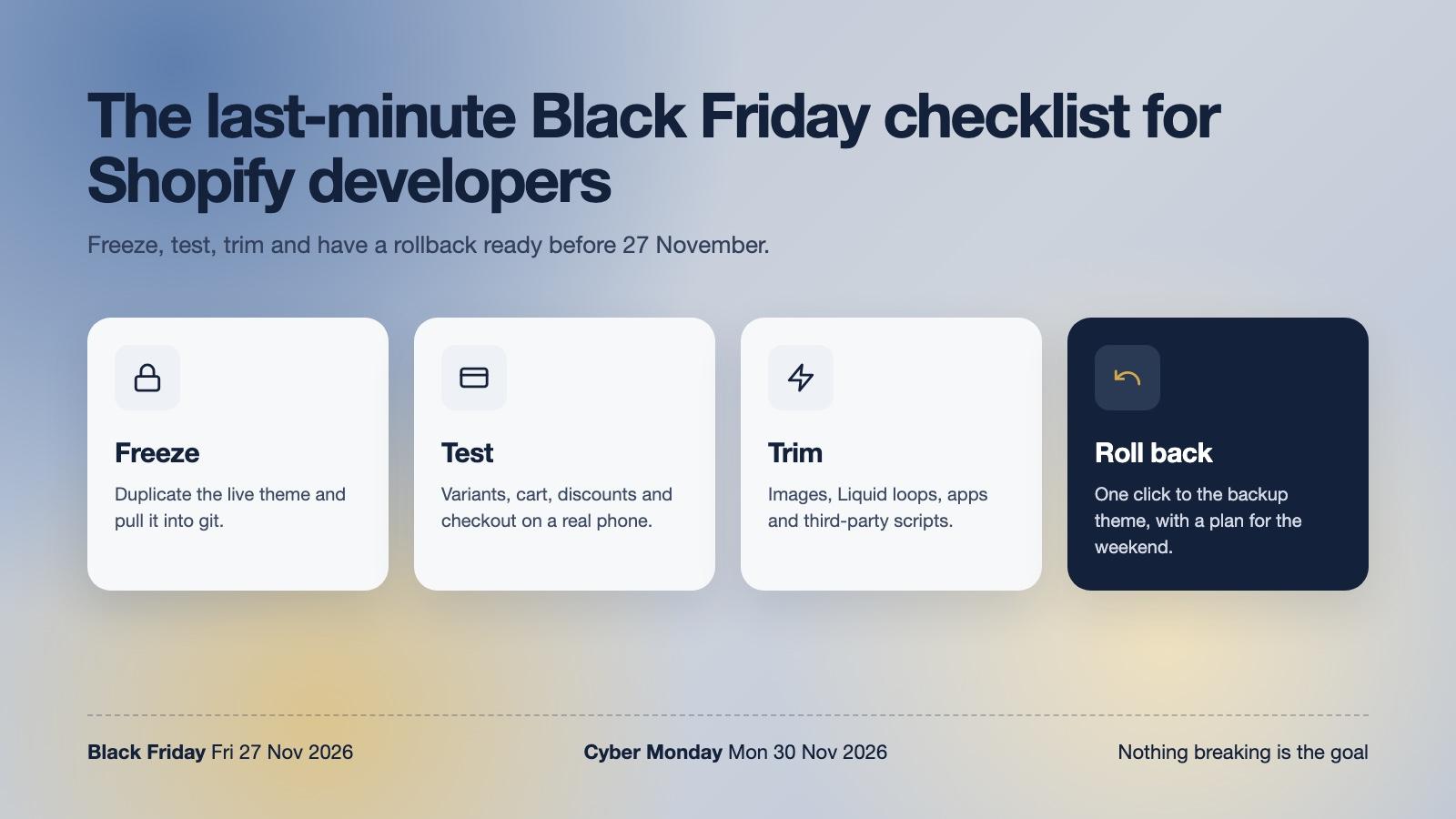
The Last-Minute Black Friday Checklist for Shopify Developers
Black Friday is on Friday 27 November 2026 and Cyber Monday on Monday 30 November. If you look after Shopify stores, the next few days are not the time for big new features. They are the time to make sure the things that already work keep working when traffic jumps.
This is the checklist I run on the stores I look after before the Black Friday weekend. It is written for developers and technical store owners, it is ordered by risk, and every item is something you can still do this week.
The short version:
- Freeze the live theme and take a backup you can restore in one click.
- Test every path that touches money, on a real phone.
- Check that discounts combine the way the merchant thinks they do.
- Trim the theme: images, Liquid loops and third-party scripts.
- Audit apps, app embeds and anything left behind by apps you removed.
- Make sure webhooks and integrations will not fall over under load.
- Know what your tracking numbers really mean this year.
- Write down the plan for the weekend, including how to roll back.
1. Freeze the theme and take a real backup
The single most useful thing you can do is stop editing the live theme.
- Agree a code freeze date with the merchant. I suggest the Tuesday or Wednesday before Black Friday. After that, only urgent fixes go live, and only after testing on a copy.
- Duplicate the live theme in the admin (Online Store → Themes → the live theme's menu → Duplicate) and rename the copy clearly, for example
LIVE BACKUP 24 Nov 2026. If anything goes wrong over the weekend, publishing this copy is your rollback. - Pull a copy into git as well. A duplicated theme protects you from bad edits. A git copy also shows you exactly what changed.
# Pull the live theme into a clean folder and commit it
mkdir store-backup && cd store-backup
shopify theme pull --live --store your-store.myshopify.com
git init && git add . && git commit -m "Live theme before Black Friday 2026"- Do sale work on an unpublished theme. Banners, sale badges and homepage changes go on a duplicate. Preview it with the share link, get the merchant to approve it, then publish it at the agreed time.
- On Shopify Plus, use Launchpad to schedule the theme switch, discounts and product changes, so nobody has to publish things by hand at midnight.
Remember the theme editor. Many "theme bugs" are really a merchant changing section settings in the customiser. Ask the merchant and their team not to make unplanned changes in the theme editor during the freeze either.
2. Test every path that touches money
Do this on a real phone, on mobile data, not only in desktop Chrome. Most Black Friday traffic is on mobile.
Product page
- Every variant can be selected, and the price, image and stock state update correctly.
- Sale prices show the compare-at price, and the saving is worked out correctly.
- Add to cart works for in-stock, low-stock and sold-out variants. Sold-out variants should be clearly disabled, not silently fail.
- Any custom product fields (engraving text, line item properties) reach the cart and the order.
Cart and cart drawer
- Quantity changes, removing items and discount messages update without a page reload.
- The cart drawer opens after add to cart on every template that has an add to cart button, including quick add on collection pages.
- Upsells and free-shipping progress bars use the same total the checkout will use.
If you have custom add to cart code, check that it handles errors. Under load, or when stock runs out, /cart/add.js returns an error response and your code must show the message rather than leaving a spinner running:
async function addToCart(variantId, quantity) {
  const res = await fetch(window.Shopify.routes.root + "cart/add.js", {
    method: "POST",
    headers: { "Content-Type": "application/json", Accept: "application/json" },
    body: JSON.stringify({ items: [{ id: variantId, quantity: quantity }] }),
  });
  const data = await res.json();
  if (!res.ok) {
    // e.g. "You can only add 2 of this item to your cart."
    showCartError(data.description || data.message || "Could not add this item.");
    return null;
  }
  return data;
}
Checkout
- Place real test orders with each payment method the store offers: cards, Shop Pay, PayPal, buy now pay later and any local methods. Refund them afterwards.
- Check shipping rates for every zone the merchant sells to, including free-shipping thresholds that change for the sale.
- Check taxes and duties for the main markets.
- Check the order confirmation email and the order status page, especially if they were customised.
Inventory
- Check the "Continue selling when out of stock" setting on the best sellers. One wrong tick on a popular product can mean hundreds of orders you cannot fulfil.
- If the merchant has stock in several locations, check which locations fulfil online orders.
3. Check that discounts combine the way the merchant expects
Discounts cause more Black Friday support tickets than anything else I see.
- List every active and scheduled discount, with start and end times in the store's time zone. Old codes from previous campaigns are often still active.
- Check combinations. Shopify lets product, order and shipping discounts combine depending on each discount's settings. Test the real customer cases: a sitewide automatic discount plus an influencer code, a sale price plus a code, free shipping plus a percentage off.
- Test the end time. If the sale ends at midnight on Cyber Monday, confirm that is midnight in the store's time zone, not yours.
- Check minimum order amounts against the currencies the store sells in, if it uses Shopify Markets.
- Watch for stacking with apps. Bundle, volume discount and upsell apps can apply their own discounts on top of yours.
Write the expected result down for each case (for example "£80 cart, BF25 code, sitewide 10% off: total should be £..."), then test it at checkout. A written list turns arguments into checks.
4. Trim the theme
You will not rebuild a theme this week, but small changes can still make a noticeable difference.
Images
Most slow product and collection pages are slow because of images. Make sure every image is served at the size it is shown, with lazy loading for everything below the fold:
{%- comment -%} Product card image: responsive sizes, lazy loaded {%- endcomment -%}
{{
  product.featured_image
  | image_url: width: 900
  | image_tag:
    loading: 'lazy',
    widths: '300, 450, 600, 900',
    sizes: '(min-width: 990px) 25vw, 50vw',
    alt: product.featured_image.alt | escape
}}
For the main hero or main product image (usually your Largest Contentful Paint element), do the opposite: do not lazy load it, and ask the browser to fetch it early:
{{
  section.settings.image
  | image_url: width: 1800
  | image_tag:
    preload: true,
    fetchpriority: 'high',
    widths: '750, 1100, 1500, 1800',
    sizes: '100vw'
}}
A new Black Friday hero banner uploaded as a 6 MB PNG can undo months of performance work. Check sale banners in particular.
Liquid
- Avoid looping over large collections to find a few products. Loops over
collections.all.productsor a big collection on every page are slow and can hit limits. Use product or collection settings, metafields, or therecommendationsobject instead. - Do not nest loops (for example, every product × every tag × every variant) on collection pages.
- Run Theme Check before you publish anything:
shopify theme checkThird-party scripts
- Open the store in Chrome DevTools → Network, filter by JS, and list every script that is not from Shopify or the theme. Each one should map to an app or tool the merchant actually uses this week.
- Load chat widgets, review widgets and similar tools with
defer, or only after user interaction, where the tool allows it. - Check Shopify's web performance dashboard in the admin and run Lighthouse on mobile for the homepage, a collection page and a best-selling product page. Fix the worst page first.
5. Audit apps and leftover app code
- List the installed apps and ask the merchant which ones they really use. Remove the rest now, not in January. Some apps add scripts to every page.
- Check app embeds in the theme editor (App embeds). Turn off any that belong to removed or unused apps.
- Search the theme for leftovers. Older apps sometimes added code directly to
theme.liquid, snippets or templates, and uninstalling the app does not remove it. Search for the app's name or its script domain and remove dead code on the backup-tested copy. - Look for overlaps. As I covered in my Fall '26 Edition post, Shopify now offers more built-in fraud rules, search and messaging tools. Two apps doing the same job on the same page is a common cause of slow pages and broken carts.
If you build public apps: the IP allowlist deadline for public apps passed on 20 November (12 November for apps using bulk operations). If you have not confirmed your app is compliant, do that before the weekend. Shopify also now lets apps reduce their access scopes from write to read, which is worth doing for any scope you no longer need.
6. Make sure webhooks and integrations survive the spike
Order volume can be many times a normal day. Any system that listens to Shopify, such as ERPs, fulfilment, CRMs, review requests or custom apps, will get many times more webhooks.
- Respond fast. Shopify expects your webhook endpoint to respond quickly, within a few seconds, and retries failed deliveries. Verify the HMAC, store or queue the payload, return
200, and do the slow work afterwards. I wrote about that pattern in Handling Webhooks in Next.js Route Handlers. - Be idempotent. Retries mean the same order webhook can arrive more than once. Use the
X-Shopify-Webhook-Idheader or the order ID to skip duplicates, so you never create two shipments or send two emails. - Watch rate limits. If your integration calls the Admin API for every order, a spike can hit API rate limits. Batch the calls, back off and retry on throttling, or move heavy jobs into a queue.
- Check background jobs. Cron jobs that sync stock or prices should not run long, overlapping jobs during peak hours.
- Check your hosting limits. Serverless functions, database connection limits and third-party API quotas can all become the bottleneck before Shopify does.
7. Know what your tracking numbers mean this year
Every merchant will look at their ad dashboards on Saturday morning. Make sure the numbers can be trusted.
- Test the purchase event end to end. Place a test order and confirm the Purchase event reaches each ad platform once, with the correct value and currency, through the pixel and through the server-side integration (for example the Meta Conversions API).
- Check for duplicate pixels. A pixel added by an app and again by hand in
theme.liquidor Customer events will double count purchases. - Know Meta's November change. From 12 November 2026, Meta reportedly measures some purchases on the shopper's device, switched on by default unless advertisers opt out. Reported conversions may rise without real sales rising. Compare Meta's numbers against Shopify's own orders before deciding which campaigns "won".
- Keep UTMs and click IDs intact. If you send traffic through redirects or link shorteners, confirm
fbclid,gclidandttclidsurvive to the landing page. My posts on click IDs across ad platforms and sending conversions back to ad networks go into the details.
8. Handle sale content in a cache-safe way
Countdown timers and "sale starts at midnight" banners are where theme code and caching meet.
Shopify caches rendered storefront pages, so Liquid logic based on the current time ('now' | date) may show a cached result to some visitors. For anything that must switch at an exact time, render the content in Liquid and let the browser decide when to show it:
{%- comment -%} sections/sale-countdown.liquid {%- endcomment -%}
<div class="sale-countdown" data-ends="{{ section.settings.ends_at }}" hidden>
  {{ section.settings.text }} <span data-countdown></span>
</div>

<script>
  (function () {
    var el = document.currentScript.previousElementSibling;
    var ends = Date.parse(el.dataset.ends);
    if (!ends) return;
    var out = el.querySelector("[data-countdown]");
    function tick() {
      var left = ends - Date.now();
      if (left <= 0) { el.hidden = true; return; }
      var h = Math.floor(left / 3600000);
      var m = Math.floor((left % 3600000) / 60000);
      out.textContent = h + "h " + m + "m";
      el.hidden = false;
      setTimeout(tick, 30000);
    }
    tick();
  })();
</script>

{% schema %}
{
  "name": "Sale countdown",
  "settings": [
    { "type": "text", "id": "text", "label": "Text", "default": "Black Friday ends in" },
    { "type": "text", "id": "ends_at", "label": "End time (ISO, with time zone)", "default": "2026-12-01T00:00:00+00:00" }
  ]
}
{% endschema %}
A few rules for sale content:
- Use a real end time and hide the timer when it ends. A timer that resets on every page load damages trust, and in some markets fake urgency can break consumer protection rules.
- Include the time zone offset in the end time, so every visitor counts down to the same moment.
- Keep sale URLs evergreen. A
/collections/black-fridaycollection reused every year builds search ranking over time. Do not create a new URL with the year in it each year. - Update policies and shipping cut-off messages. Holiday delivery dates and returns windows are what customers ask support about most after price.
9. Write down the plan for the weekend
Pressure leads to bad decisions, so make them in advance.
- Who is on call, and how to reach them (not only by email).
- What counts as an emergency: checkout broken, add to cart broken, wrong prices or discounts, site down. A misaligned banner is not one.
- The rollback steps: publish the backup theme, turn off the new discount, or disable the app embed. Write down where each switch is.
- Where to look: Shopify's Live View for orders and sessions in real time, status.shopify.com for platform incidents, and the logs or dashboards for your own integrations.
- One person approves changes during the sale. Nobody fixes things directly on the live theme without the backup being ready.
A simple message template for the merchant saves time when something breaks:
What happened:   Add to cart failing on product pages (mobile only)
Since:           09:42 store time
Impact:          ~30% of sessions affected, checkout still works from cart page
Action taken:    Published "LIVE BACKUP 24 Nov 2026" theme at 09:51
Next update:     10:15
10. After the weekend
- Switch everything back on purpose: end banners, scheduled discounts, the sale theme and any temporary apps.
- Compare ad platform conversions with Shopify orders before anyone reports on return on ad spend.
- Write a short review: what broke, what was slow, what support was asked most. That list is next year's checklist, and the best time to write it is the week after.
- Merge the git backup with what is now live, so your repository matches the store again.
The checklist
- Code freeze agreed, live theme duplicated and pulled into git
- Sale changes on an unpublished theme, approved by the merchant
- Every money path tested on a real phone: variants, cart, checkout, payments, shipping, taxes
- "Continue selling when out of stock" checked on best sellers
- Discounts listed, combinations tested against written expected totals, end times in the store's time zone
- Images sized and lazy loaded, hero image preloaded, Theme Check clean
- Unused apps removed, app embeds and leftover app code cleaned up
- Webhooks respond fast, skip duplicates and respect rate limits
- Purchase events tested once per platform, no duplicate pixels, Meta's November change understood
- Countdown timers honest, client-side and time zone safe
- On-call list, emergency definition and rollback steps written down
None of this is exciting, and that is the point. The best Black Friday for a developer is one where nothing happens and the merchant only sees the orders.
Sources: Shopify Help Center: duplicating themes, Shopify CLI theme commands, Liquid image_tag filter, Shopify Cart Ajax API, Shopify webhooks best practices, Shopify developer changelog, PPC Land: Meta Pixel will count more conversions from Nov 12.
Let's Work Together
Need a second pair of eyes on your store before the weekend? Contact me here: LinkedIn